Personal note: This article reflects my experience and is for educational purposes only—not official vendor guidance. Always verify procedures against current vendor documentation.
The example command below follows Wazuh's current 4.14 quickstart path. Confirm the current patch release, supported operating system, sizing, and upgrade/installation guidance before running it. Do not mix commands from different Wazuh releases.
1. What an all-in-one deployment contains
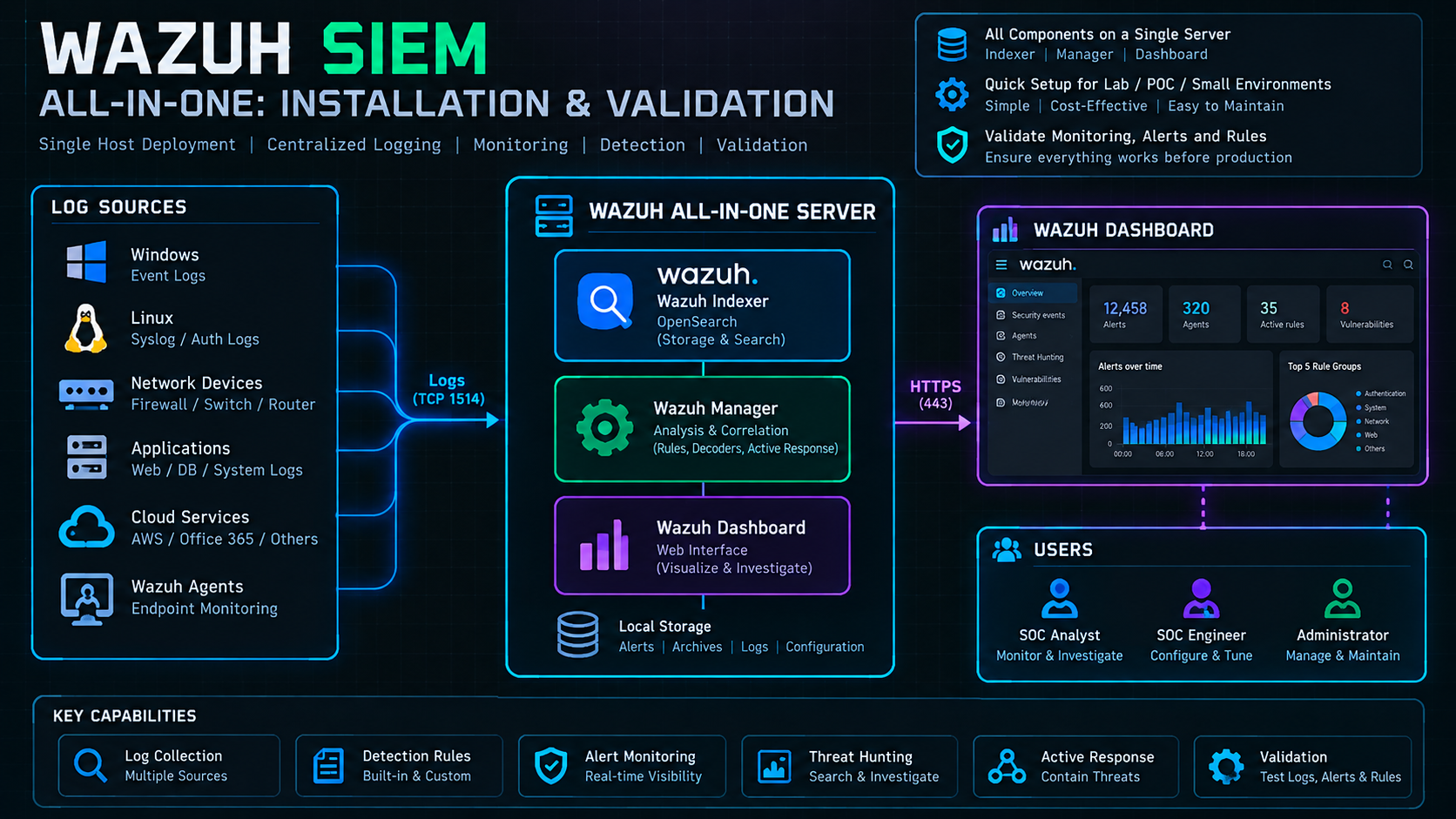
Wazuh's central platform has three main components: the Wazuh server (manager and Filebeat), the Wazuh indexer, and the Wazuh dashboard. In an all-in-one deployment, these components run on the same host. Agents are installed separately on monitored endpoints.
This design is useful for a lab, proof of concept, or appropriately sized small environment. It simplifies initial deployment, but it does not provide host-level high availability: if the server fails, the central platform is unavailable. Larger or availability-sensitive environments may require a distributed design, which is covered separately.
2. Check prerequisites before installing
- Use a clean, supported 64-bit Linux host and verify the supported OS list in the official quickstart for your selected release.
- Size CPU, RAM, and storage for the expected endpoint count, alert volume, and retention period. The quickstart's sizing table is a starting point, not a substitute for workload-specific planning.
- Confirm outbound access to the Wazuh package endpoints and inbound access to the dashboard and any required agent services.
- Set a stable hostname, time synchronization, DNS where applicable, and a documented network/firewall policy.
- Take a snapshot or backup if the host contains anything you need to preserve. Do not run a new installation over an existing deployment without a recovery plan.
- Prepare a persistent terminal session for long-running remote installation work, and retain the full installer output for troubleshooting.
Common default ports include TCP 443 for the dashboard, TCP 1514 for agent communication, TCP 1515 for enrollment, TCP 55000 for the Wazuh API, and TCP 9200 for the indexer API. Do not expose management APIs or the indexer directly to untrusted networks; restrict access according to the official port and security guidance.
Capture a baseline before installation
These preflight checks document the host before the installer changes it. Save the output in your change record, but redact hostnames, addresses, usernames, and sensitive environment details before sharing it.
hostnamectl
cat /etc/os-release
uname -m
nproc
free -h
df -h
timedatectl status
sudo ss -lntup
Check the OS and architecture against the selected Wazuh release requirements, confirm time synchronization, review free disk and memory, and identify port conflicts before proceeding.
3. Install the central components
For a straightforward single-host deployment, Wazuh documents an assisted installation command. Run it on the target host with an account that has sudo privileges:
curl -sO https://packages.wazuh.com/4.14/wazuh-install.sh
sudo bash ./wazuh-install.sh -a
The -a option requests an all-in-one installation. Read the official quickstart before running the script, and obtain it only from the official Wazuh package endpoint. For production environments, review the script and change controls required by your organization's policy.
The installer should complete the setup of the central components and display a summary that includes the dashboard URL and generated access credentials. Save the generated credentials securely and share them only through an approved secure channel.
Check listeners and the local indexer endpoint
sudo ss -lntp | grep -E ':(443|1514|1515|55000|9200)\\b'
curl -k -u admin 'https://127.0.0.1:9200/_cluster/health?pretty'
The curl example prompts for the password because it is not supplied on the command line. Use the configured CA and verified hostname instead of -k when certificate trust is configured; the insecure flag is shown only as a short local diagnostic. A successful indexer response alone does not prove that the manager, Filebeat, and dashboard are healthy.
4. Validate the deployment instead of trusting one success message
First, check each expected service on the host. The following loop reports each service independently, making it easier to spot a component that was not installed or did not start:
for service in wazuh-indexer wazuh-manager filebeat wazuh-dashboard; do
  echo "===== $service ====="
  systemctl --no-pager --full status "$service"
done
If a service is missing or failed, inspect its journal and the installation output before attempting a repair:
sudo journalctl -u wazuh-indexer -n 100 --no-pager
sudo journalctl -u wazuh-manager -n 100 --no-pager
sudo journalctl -u filebeat -n 100 --no-pager
sudo journalctl -u wazuh-dashboard -n 100 --no-pager
Then verify the dashboard at https://<server-ip> using the generated administrator credentials. A browser warning about a self-signed or locally issued certificate can occur in a fresh lab; do not treat it as a reason to disable TLS verification globally. For production, plan certificate trust and secure access explicitly.
Finally, enroll a test agent from the dashboard and verify that it becomes active and that its events are visible. A running dashboard alone does not prove the manager, Filebeat, indexer, and data pipeline are all working end to end.
5. Field note: the indexer completed, but the full installation did not
During my Wazuh lab work, an installation attempt using the 4.14.7 assistant reached an indexer state reported as GREEN with a single OpenSearch 2.19.5 node. However, the available troubleshooting record showed that the Wazuh manager, dashboard, and Filebeat were not installed in that attempt.
This is an important distinction: a healthy indexer proves only that the indexer is healthy. It does not prove the all-in-one deployment is complete. In this case, the available record does not establish a confirmed root cause for why the remaining components were missing, so this article does not attribute the result to a specific dependency, timeout, or configuration error.
Confirm agent enrollment and event flow
After installing an agent and configuring its manager address, validate the connection from both sides. Replace the endpoint with the approved manager address; do not publish internal addresses.
# On a Linux agent
sudo systemctl --no-pager status wazuh-agent
sudo grep -A5 -B1 '<server>' /var/ossec/etc/ossec.conf

# On the manager
sudo /var/ossec/bin/agent_control -l
sudo tail -n 30 /var/ossec/logs/ossec.log
On Windows, use an elevated PowerShell session to check the WazuhSvc service. If an agent was migrated from an older all-in-one server, update its configured manager endpoint and validate enrollment rather than assuming it will follow the new server automatically.
Safe troubleshooting sequence
- Capture the exact command, installer output, timestamp, OS release, disk/memory state, and service status. Redact hostnames, IPs, passwords, tokens, and other sensitive details before sharing logs.
- Check all four services independently. Do not infer the manager, dashboard, or Filebeat state from the indexer's GREEN cluster health.
- Review the service journals and the installer output to find the first failing step, rather than rerunning commands blindly.
- For a new lab where a clean install is intended, confirm that no required data must be preserved and follow the current official quickstart from start to finish.
- Run the full assisted installation in a persistent terminal session if the SSH session may disconnect, and keep its complete output. A persistent session reduces interruption risk but does not fix an underlying installation error.
- Repeat the service checks, open the dashboard, and enroll a test agent before calling the deployment complete.
Confirmed from the recorded attempt: the indexer was GREEN and the other listed components were not installed at that point. The subsequent plan was to rerun the all-in-one assistant in a persistent session. The available notes do not confirm the final outcome of that retry, so no successful recovery is claimed here.
6. Security and operational considerations
- Restrict access to ports based on actual requirements; do not publish the indexer or API endpoints directly to the internet.
- Change or securely manage default/generated credentials according to the official setup guidance and your environment's policy.
- Back up configuration and important data before reinstalling, changing storage, or applying upgrades.
- Plan storage around alert volume and retention. Indexer health and free disk capacity should be monitored over time.
- Keep version-specific notes: a procedure that worked on one patch release should be rechecked before reuse on another.
7. Official documentation
- Wazuh Quickstart — all-in-one installation and sizing
- Wazuh architecture and default ports
- Wazuh installation guide
- Wazuh agent enrollment troubleshooting
Always check the official documentation for the exact release and operating system you use. This guide is educational and does not replace a tested deployment plan, backup, or change approval for production systems.
Planning a Wazuh lab or troubleshooting an incomplete SIEM deployment?
Contact me to discuss Wazuh installation, SIEM engineering, platform troubleshooting, or security monitoring requirements.