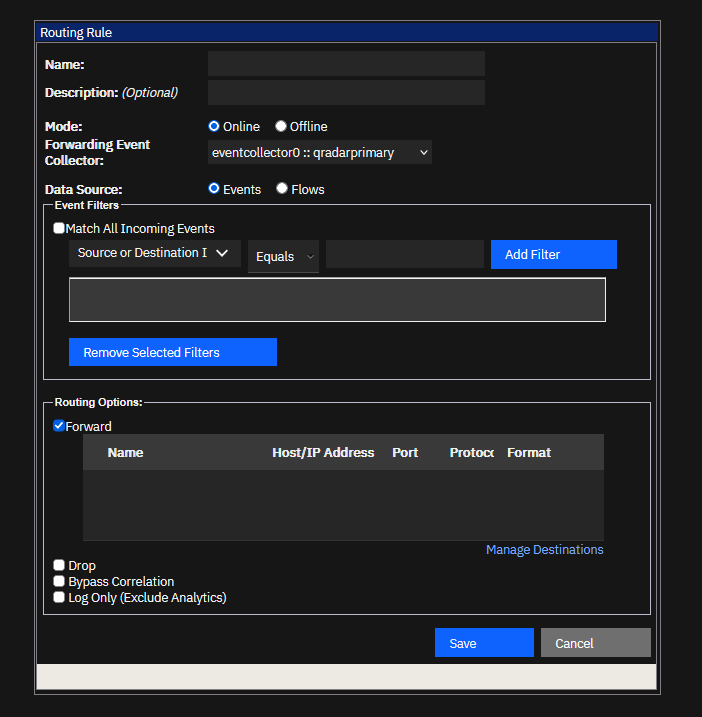
1. Routing Rule behavior
A Routing Rule applies filters to incoming or stored event/flow data, then applies a selected routing action. Typical uses are sending a filtered copy of logs to another platform, reducing real-time correlation for selected data, or deliberately excluding data that has no retention or detection value.
To forward data, you need a configured Forwarding Destination as well as a Routing Rule that selects the data and destination. Creating a destination alone does not start forwarding. IBM documents this two-part setup.
2. Online vs Offline: choose based on delivery needs
| Mode | How it works | Trade-off |
|---|---|---|
| Online | Real-time forwarding from the selected Event Collector. | Data is current, but if the destination is unreachable, the forwarded copy might not be delivered. It is not a durable store-and-forward queue for the destination outage. |
| Offline | Data is stored first and forwarded from the selected Event Processor. | Better suited where delivery continuity matters more than immediacy; forwarding can be delayed. |
Offline mode does not offer the same action choices as Online mode. In particular, Drop, Bypass Correlation, and Log Only are not available in Offline mode. Check the exact options exposed by your QRadar release and deployment type.
3. What each routing option means
| Option | Result | Use carefully when… |
|---|---|---|
| Forward | Sends matching data to a selected destination. By itself, QRadar also stores and processes it through the CRE as usual. | You need a copy in another SIEM, syslog server, or downstream platform. |
| Drop | Matching data is not stored in QRadar and is not processed by the CRE. Online mode only. | You have confirmed the data is genuinely unnecessary. Dropped data cannot be searched or recovered from QRadar afterwards. |
| Bypass Correlation | Matching data is stored, but bypasses real-time CRE processing. Available in Online mode. | You need the data to remain searchable but do not want it to trigger normal real-time correlation. Events can still be used in supported historical correlation runs. |
| Log Only (Exclude Analytics) | Events are stored and searchable but bypass CRE and analytics. They do not contribute to offenses or historical correlation. | Use only when you intentionally want retention without security analytics. This option is for events, not flows, and has QRadar Data Store entitlement considerations. |
Bypass Correlation preserves events for supported historical correlation. Log Only excludes them from historical correlation and some applications may ignore them. Verify license and app behavior before using Log Only; do not select it for internal events.
In Online mode, Forward can be combined with one of the applicable additional options. For example, Forward + Bypass Correlation sends the data outward and keeps it in QRadar without real-time CRE processing. IBM also notes that when multiple rules match the same data, QRadar applies the safest routing option—for example, a Bypass Correlation match prevents another matching Drop rule from dropping the data. See IBM’s routing option definitions and combinations.
4. Create a Routing Rule
- Open Admin → System Configuration → Forwarding Destinations and create/verify the destination if you need to forward data.
- Open Admin → System Configuration → Routing Rules, then select Add.
- Give the rule a clear name. Choose Online or Offline, then select the relevant Event Collector or Event Processor and whether the data source is Events or Flows.
- Add the narrowest filters that identify the intended data. Use Match All only when you deliberately mean all incoming data.
- Select the routing option and destination as required, save the rule, and verify its enabled state.
Menu wording can vary by QRadar version. For the exact fields and restrictions, use the guide for your installed release: IBM’s routing-rule configuration procedure.
5. Common mistakes to avoid
- Dropping data just to reduce correlation load. If the events may be useful later, consider Bypass Correlation instead of permanently discarding them.
- Assuming forwarding destination configuration is enough. You also need a rule (or another supported forwarding mechanism) to select what gets sent.
- Using broad filters without testing. Verify the filter against real examples before enabling destructive options such as Drop.
- Forgetting Online-mode delivery behavior. If the target is down, the remote copy may be missed. Pick Online or Offline based on whether real-time delivery or more resilient delivery is the priority.
- Skipping validation. In Forwarding Destinations, inspect the Seen, Sent, and Dropped counters. Then check the destination itself to confirm that messages are arriving.
IBM references
- Routing options for rules — QRadar 7.5
- Forward data to other systems — QRadar 7.5
- Routing Rules with QRadar Data Store — QRadar 7.5
- Configuring Routing Rules to forward data — QRadar 7.4
- Robert Rojek — QRadar’s Routing Rules (reference article)
Routing fields and options vary by QRadar release, hosting model, and entitlement. Check IBM documentation for your deployment before enabling Drop or Log Only in production.
Before enabling a routing rule, confirm whether the selected events or flows must be forwarded, retained, correlated in real time, or excluded from analytics.