drq runs QRadar health checks for the current host. recon ps is primarily used to inspect QRadar application workloads and their status. cliniq is another QRadar health-check utility. None of these commands alone proves the full deployment is healthy.
1. Define the scope before running checks
A health check is most useful when it is tied to a purpose: routine operations, investigation of a known issue, a planned change, or a pre-upgrade review. Record the QRadar release/update package, host role (Console, Event Collector, Event Processor, App Host, or other managed host), and the reason for the check.
Run checks with the permissions required by IBM's instructions, usually as root for DrQ. In distributed deployments, remember that a command run on one host generally does not validate every other host.
2. Run DrQ health checks
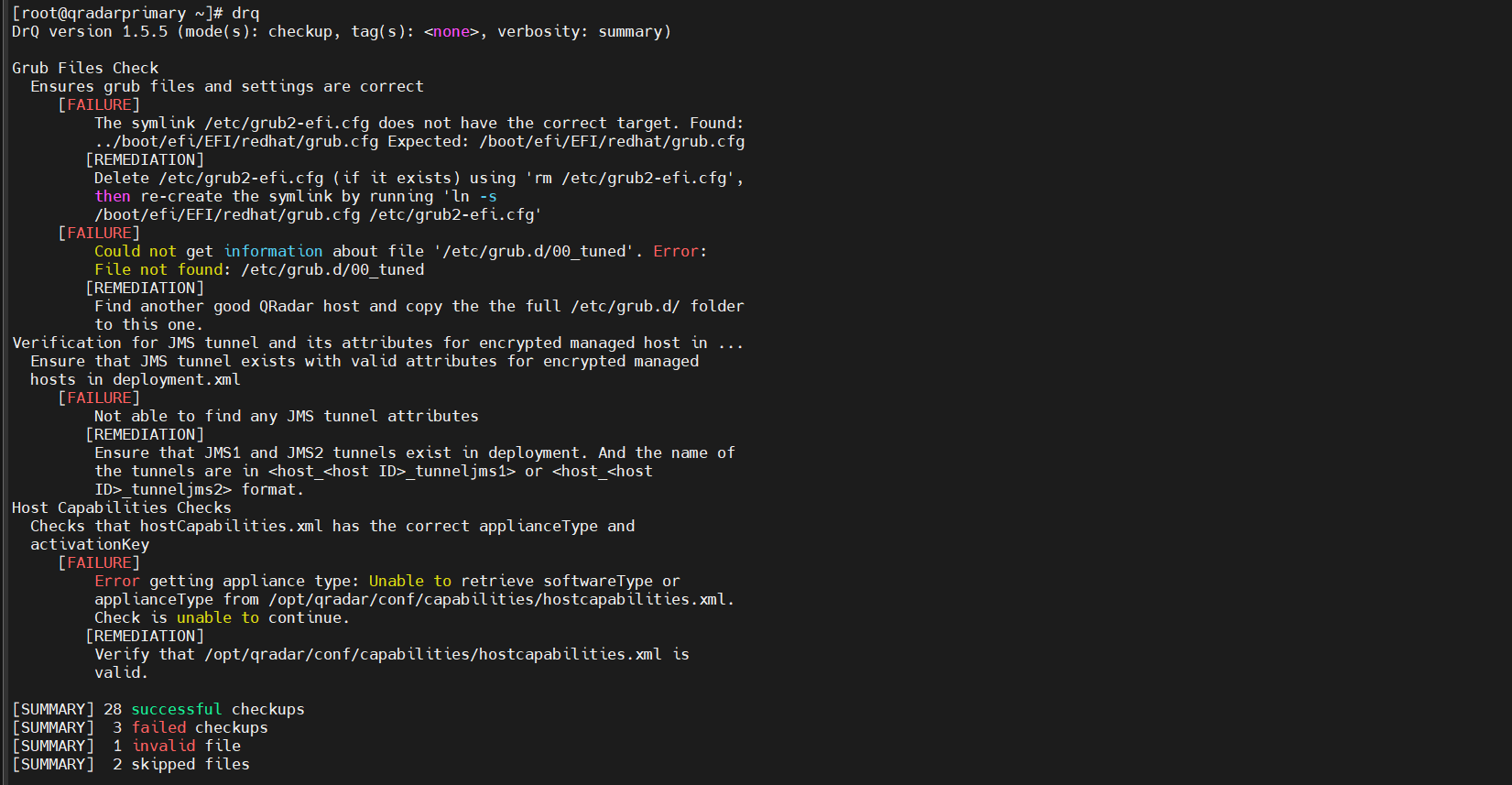
DrQ is IBM's extensible health-check framework. IBM documents it for routine monitoring and for pre-change activities such as upgrades. It runs the checks available and applicable on the local host; it does not communicate with every other system in the deployment.
drqUseful documented options include:
| Command | Purpose |
|---|---|
drq -h | Display help and supported options. |
drq -l | List available tests and whether they apply to this host. |
drq -v | Show verbose check results. |
drq -j | Output check results in JSON format. |
drq -q | Use quiet mode and return an exit code: 0 for success, 1 for check failures, and 2 for invalid Lua files (per IBM's documented behavior). |
For automated collection, the JSON or quiet output may be useful, but review the output format and exit behavior on the QRadar release you operate before integrating it into a script.
A failure or warning is a starting point for investigation. Read the test name, evidence, suggested action, and applicable release notes. Do not change system files or apply a workaround solely because a health-check line looks unusual.
3. Inspect application workloads with Recon
Recon is particularly useful when troubleshooting QRadar applications. IBM documents it for QRadar 7.4.0 and later, on the Console or App Host where the applications run. The latest auto-update bundle is required, and Recon is not available for QRadar on Cloud. Confirm those prerequisites before using it.
/opt/qradar/support/recon ps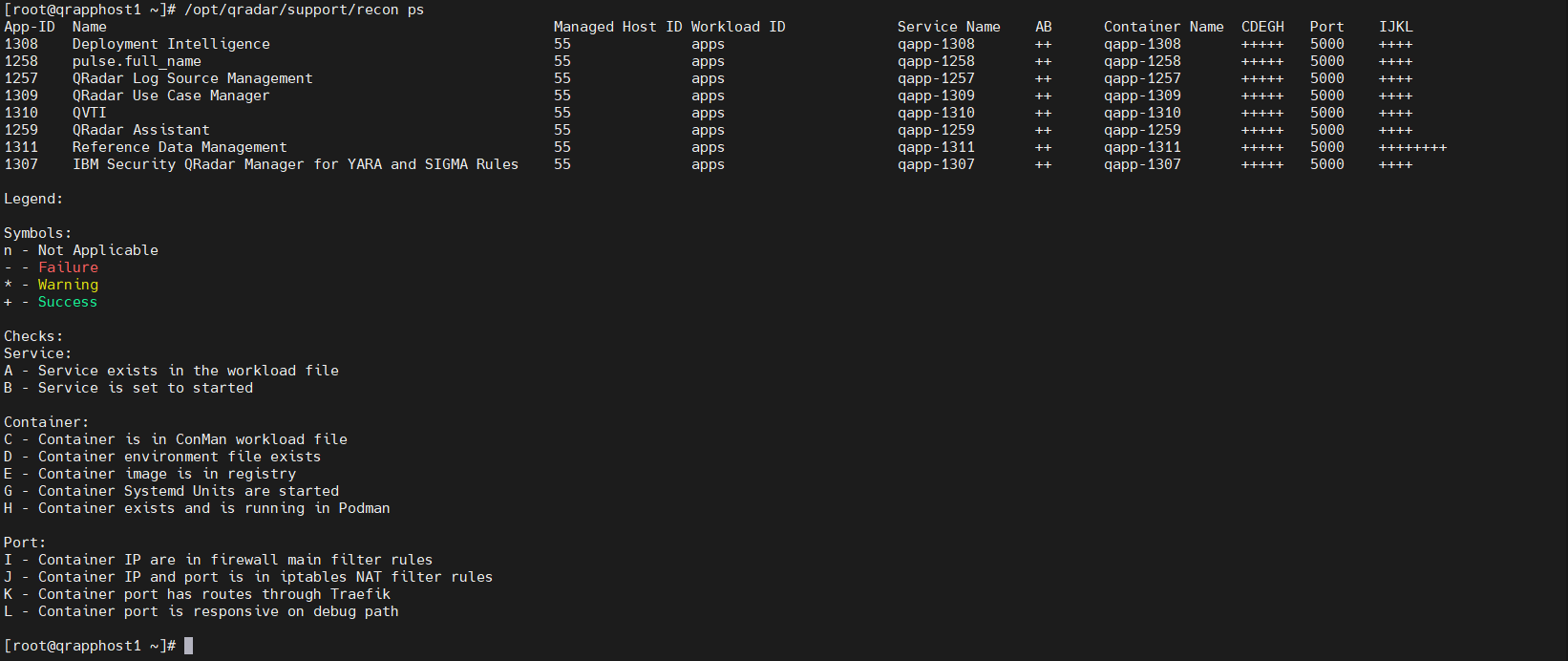
The output lists application identifiers and workload/service/container checks. IBM's documentation describes status symbols for checks such as whether a service is defined and started, whether the container exists and is running, and whether its port is responsive.
Use this command when the problem involves an app that will not start, an app UI that is unavailable, or an application workload that appears unhealthy. It is not a replacement for DrQ, a full deployment check, or a log-source ingestion test.
4. Use Cliniq where applicable
Cliniq is listed in IBM's QRadar support-tools reference as a health-check tool for routine checks and pre-upgrade reviews. Begin by checking the supported options:
/opt/qradar/support/cliniq -hThen run the health-check procedure documented for your installed release. The screenshots below show example verbose output from a Cliniq run; results depend on the QRadar version, patch level, and host configuration.
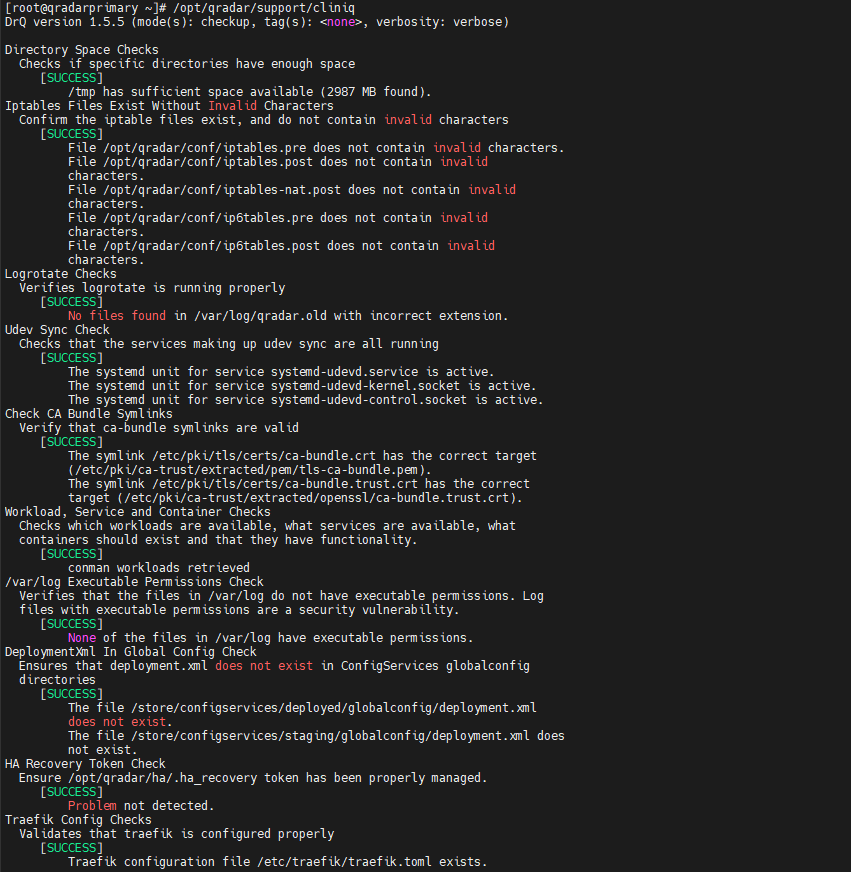
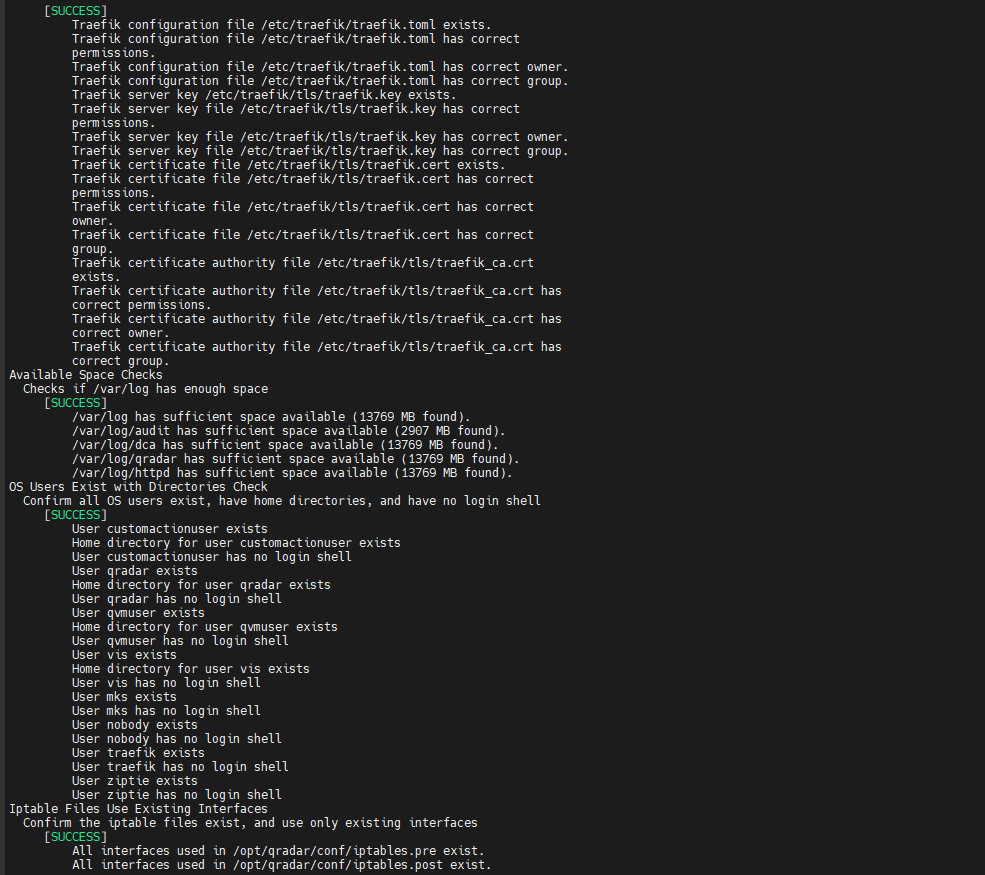
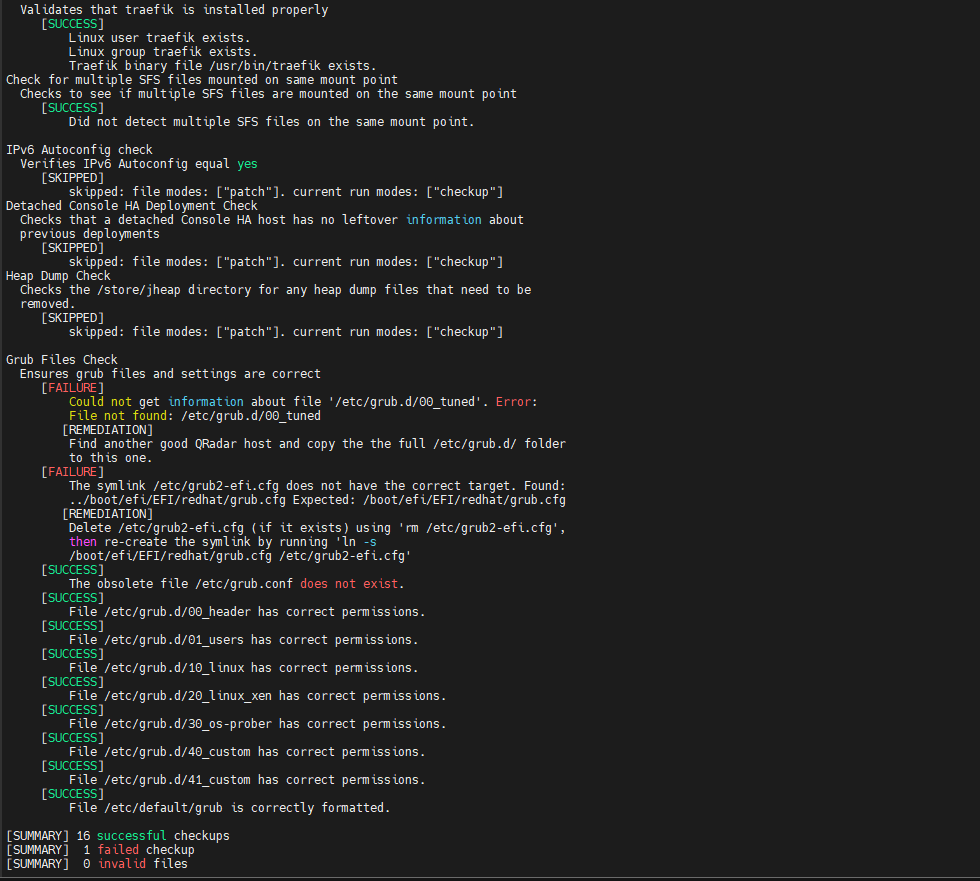
Tool availability and behavior can vary by version or patch level; a missing Cliniq binary or symbolic link has been documented as an upgrade failure condition by IBM Support.
If Cliniq is missing or fails, collect the exact error and QRadar version, then consult the matching IBM Support article or open a support case. Avoid replacing symbolic links or selecting a different binary version unless IBM's instructions for that specific issue tell you to do so.
5. A repeatable health-check workflow
- Capture the baseline: record date/time, host name, QRadar version/update package, host role, and the change or symptom under review.
- Check each relevant host: run DrQ where applicable rather than assuming a Console result covers all managed hosts.
- Review application status: if the issue involves the App Host or applications, collect the Recon output from the relevant host.
- Run Cliniq as appropriate: use the help and procedure documented for the exact QRadar release; preserve any error output.
- Validate user-visible service: log in to the UI, check relevant system notifications, confirm the intended log sources are communicating, and verify that new events can be searched.
- Document before-and-after results: capture the symptom, output, action taken, and outcome. For upgrades, address blockers and follow IBM's upgrade checklist before proceeding.
6. What these checks don't prove
A successful command does not, by itself, demonstrate that every aspect of QRadar is healthy. These checks may not validate end-to-end log delivery from every source, EPS/FPM against expected load, search accuracy, HA synchronization, connectivity between all managed hosts, license coverage, or the correctness of a detection use case.
Pair local diagnostic output with deployment-specific checks, UI verification, log-source status, system notifications, network evidence, and the official pre-upgrade checklist. In a distributed deployment, check each host involved in the symptom or change.
7. Official references
- IBM: Running health checks with DrQ
- IBM QRadar 101: Support tools (including Cliniq)
- IBM: Running the Recon tool
- IBM: Preparation checklist for QRadar upgrades
- IBM Support: Missing Cliniq binary during upgrade
Run these checks with approved access. Before changing a production appliance, follow the procedure for your QRadar release and your organization's change process.
For pre-upgrade readiness or recurring QRadar issues, contact me to arrange a health check scoped to the affected hosts and services.